Merge JPG Images Online
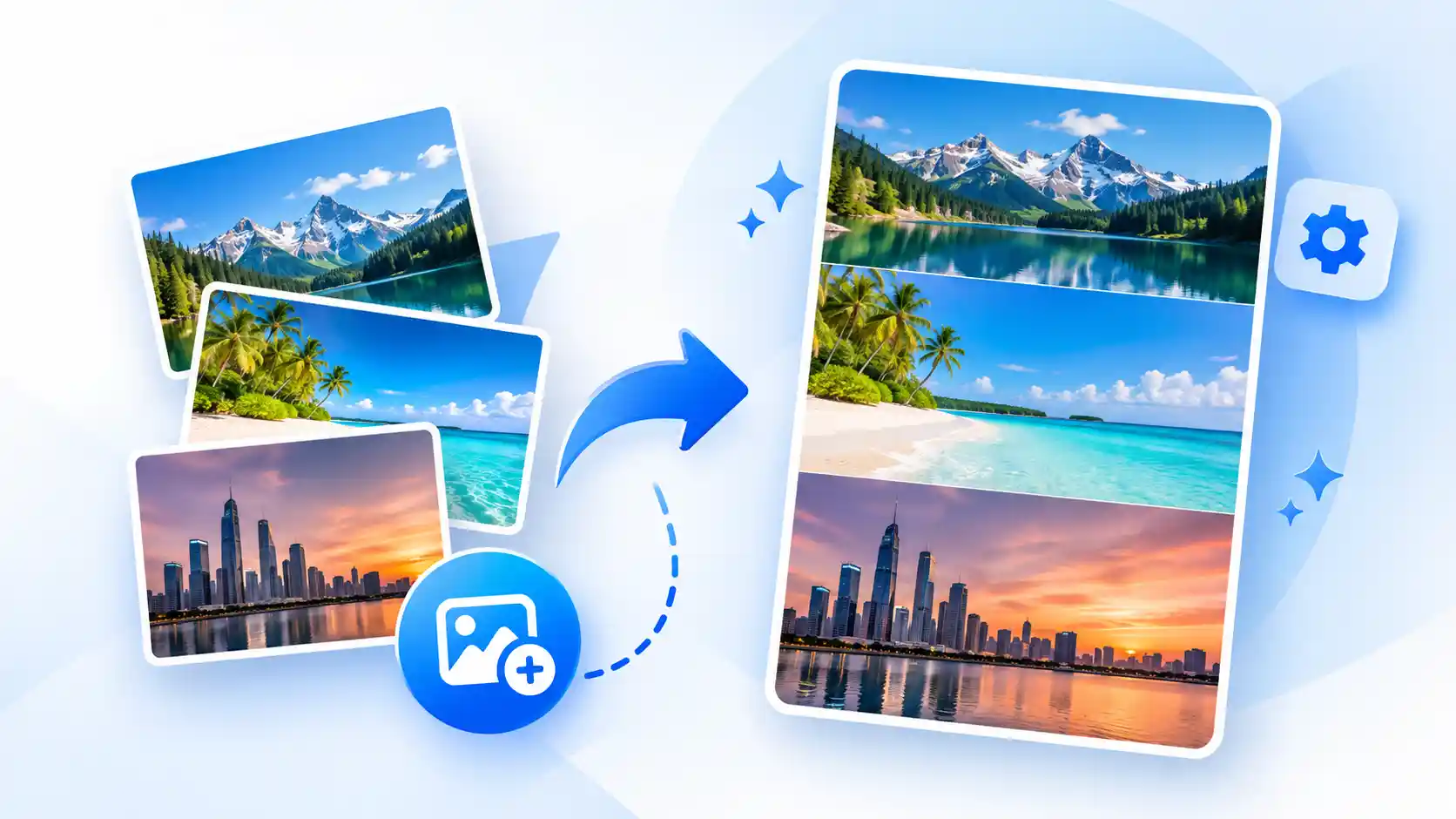
JPG Merger makes it simple to combine multiple JPG images into one file directly from your browser. Upload your images, arrange them in the order you want, choose a layout, and download the finished JPG without using complicated editing software.
You can place images side by side, stack them vertically, or organize them into a grid. The tool also lets you control spacing, background color, borders, and JPG quality before creating your final image.
How to Use the JPG Merger
Combining images only takes a few simple steps. You can prepare your final JPG without installing an additional image editor.
Upload Images
Select multiple JPG images from your device or drag and drop them into the upload area.
Arrange Images
Drag the image cards to change their order or remove any image you do not want to use.
Choose a Layout
Select vertical, horizontal, or grid mode and adjust the available image settings.
Download JPG
Check the live preview, choose your preferred quality, and download the merged JPG image.
Everything You Need to Merge Images
Multiple JPG Upload
Upload several images together instead of processing them one at a time.
Drag & Drop
Add images quickly by dragging them directly into the tool.
Image Reordering
Change the image sequence before creating the final result.
Vertical Merge
Stack images from top to bottom to create a tall JPG image.
Horizontal Merge
Place images next to each other from left to right.
Grid Merge
Arrange several images into rows and columns using grid mode.
Spacing Control
Adjust the amount of space between your images.
Border Control
Add a border and choose a custom border color.
JPG Quality
Choose the output quality before downloading the final JPG.
Live Preview
Check your merged image before saving the final file.
Browser Processing
Images are processed directly in your browser using Canvas.
Mobile Friendly
Use the tool comfortably on desktop, tablet, or mobile.
Choose How to Merge Your JPG Images
Vertical JPG Merge
Put one image below another to create a longer image. This layout is useful for screenshots, image sequences, and vertically arranged photos.
Horizontal JPG Merge
Place images side by side from left to right. It works well for comparisons, before-and-after images, and simple photo layouts.
JPG Grid Merge
Arrange multiple images into rows and columns. You can choose the number of columns and create a simple image grid.
Customize Your Merged Image
A simple merge does not always look the way you want. That is why the tool includes several controls for adjusting the final image before you download it.
- Adjust the spacing between images
- Choose a background color
- Add a custom border
- Select a border color
- Adjust JPG quality
- Check the output dimensions
A Simple Way to Combine Images
Sometimes you only need to combine a few images rather than open a full image-editing application. A dedicated JPG merger keeps the process focused on the task you actually need to complete.
Simple Workflow
Upload, arrange, customize, preview, and download from one place.
No Installation
Use the tool directly in a modern web browser without desktop software.
Flexible Layouts
Choose the layout that fits the images you are working with.
Preview Before Saving
See the result and make adjustments before downloading the final JPG.
Processed Directly in Your Browser
The JPG Merger uses browser-based Canvas processing to create the merged image. No external image-processing API is required for the merge operation.
What Can You Use a JPG Merger For?
Combine Photos
Put related photos together in a single JPG file.
Join Screenshots
Combine several screenshots into one longer image.
Before & After
Place images side by side for visual comparisons.
Create Simple Collages
Arrange several pictures into a simple grid layout.
JPG Merger FAQs
What is a JPG Merger?
A JPG Merger is an online image tool that combines multiple JPG images into one final image. You can arrange the images vertically, horizontally, or in a grid.
Can I merge multiple JPG images?
Yes. You can upload multiple images and arrange them in the order you want before creating the final JPG.
Can I merge JPG images side by side?
Yes. Choose Horizontal mode to place your images next to each other from left to right.
Can I merge JPG images vertically?
Yes. Vertical mode places the selected images one below another.
Can I create a JPG image grid?
Yes. Grid mode lets you arrange your images into rows and columns and choose the number of columns.
Can I add spacing and borders?
Yes. You can control the spacing between images and add a custom border with your preferred border color.
Is the JPG Merger free?
Yes. The tool can be used without an image-merging API or desktop image-editing software.
Do I need to install software?
No. The tool works directly in a modern web browser.
Merge JPG Images in a Few Simple Steps
Upload your images above, choose the layout you want, customize the result, and download your merged JPG when it looks right.
Start Merging JPG Images