WebP Crop is a simple way to remove unwanted areas from a WebP image without installing desktop software. Whether you need to trim extra space, focus on one part of a photo, or prepare an image for a website, cropping can make the final image cleaner and easier to use.
Our free WebP cropper works directly in your browser. You can upload a WebP image, move the crop area, adjust the corners, choose a useful aspect ratio, and download the cropped result. Your image does not need to be sent to an external image-processing service.
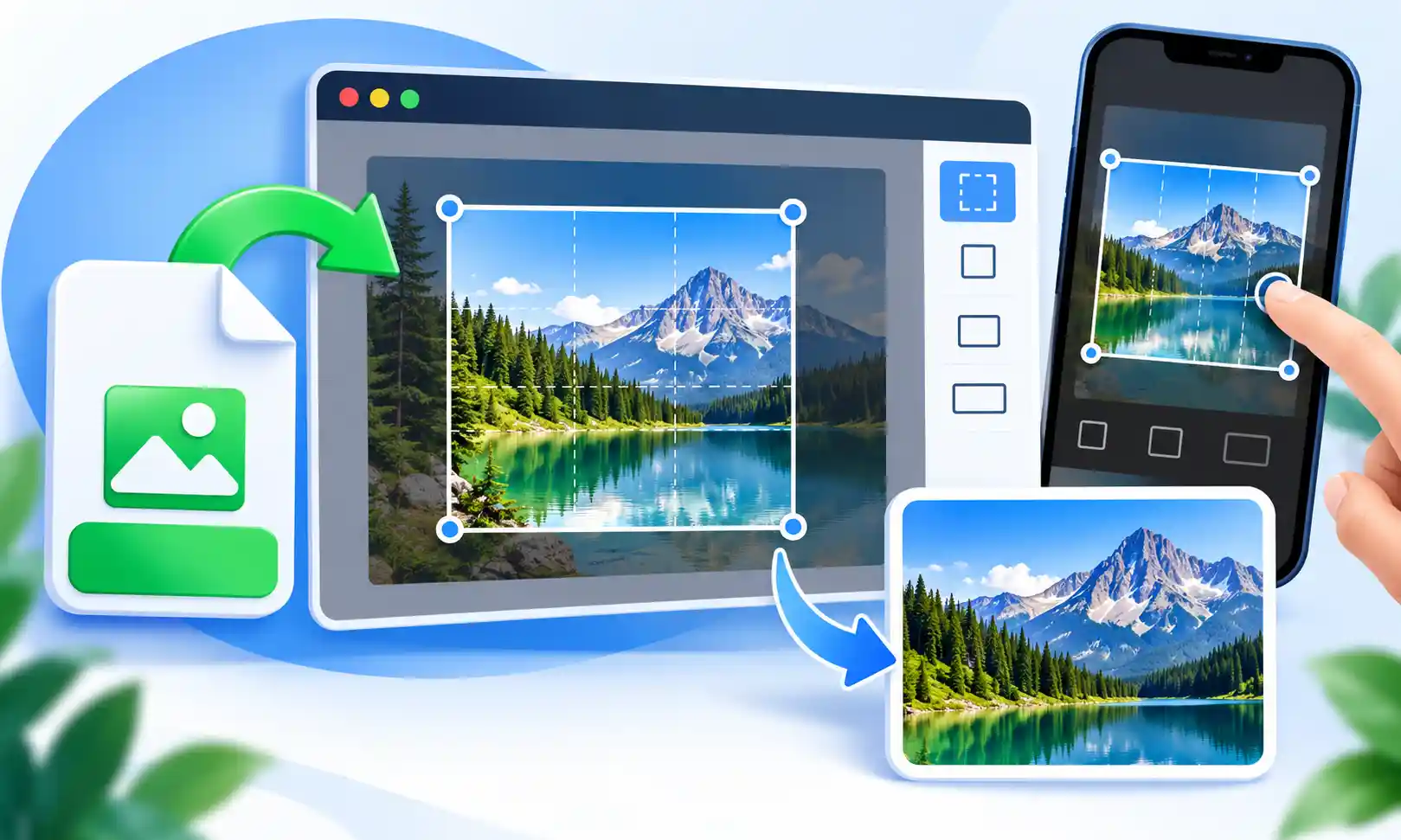
What Is WebP Crop?
WebP Crop refers to the process of cutting a WebP image to keep only the area you actually need. Instead of changing the entire image, cropping removes unwanted edges or sections while keeping the main subject in focus.
For example, imagine you have a product photo with a large amount of empty space around the product. You can crop that extra space and create a more balanced image. The same idea works for profile images, blog graphics, screenshots, thumbnails, banners, and many other types of visual content.
Why Crop a WebP Image?
A good crop can change the way an image looks without requiring a complicated editor. Sometimes the original photo is wider or taller than the space where you want to use it. Cropping gives you more control over the visible area.
- Remove unnecessary empty space.
- Focus attention on the main subject.
- Prepare images for websites and blog posts.
- Create better thumbnails and profile images.
- Match common image aspect ratios.
- Make an image fit a specific layout more naturally.
How to Crop WebP Images Online
You do not need advanced image-editing skills to crop a WebP image. The process is designed to be straightforward, even if you are working with images for the first time.
1. Upload Your WebP Image
Start by selecting a WebP image from your device. On supported devices, you can also use the upload area to select your file quickly.
2. Adjust the Crop Area
After the image opens, move the crop area to the part of the image you want to keep. You can also use the corner handles to make the selected area smaller or larger.
3. Choose an Aspect Ratio
If you need a specific shape, choose an aspect ratio such as 1:1, 4:3, or 16:9. If you do not need a fixed shape, the free option gives you more control over the crop.
4. Download the Cropped WebP
Once the crop looks right, download the result as a WebP image. Before downloading, check the visible area and make sure the main subject is positioned the way you want.
Crop WebP Images on Mobile
A WebP cropper is especially useful on mobile because you may not have access to a desktop image editor. A touch-friendly crop area lets you adjust the selection directly with your finger.
You can move the crop area by dragging it and adjust the size by using the corner handles. This makes it easier to prepare images from a phone or tablet before uploading them to a website, social profile, blog, or online store.
WebP Crop Features
The tool is designed to keep the cropping process simple while still providing useful controls for everyday image editing.
Free WebP Cropping
Crop WebP images without purchasing desktop image-editing software.
Touch Friendly
Move the crop area and adjust the corners using touch controls on supported mobile devices.
Aspect Ratios
Use common ratios such as 1:1, 4:3, and 16:9 when you need a consistent image shape.
Browser Based
The cropping process can be handled directly in your browser without a separate desktop application.
WebP Output
Download the cropped image in WebP format for convenient use across your website and other projects.
Simple Controls
The interface is designed for beginners who want to crop an image without learning complicated editing software.
When Should You Use a WebP Cropper?
There are many situations where cropping is more useful than resizing alone. If the subject already has the right size but there is too much empty space around it, cropping is usually the better choice.
You can use a WebP cropper for blog images, product photos, website graphics, profile pictures, thumbnails, screenshots, promotional images, and simple social media graphics.
WebP Crop vs. WebP Resize
Cropping and resizing are related, but they do different jobs. Cropping changes which part of an image remains visible, while resizing changes the dimensions of the image.
Crop
Removes unwanted parts of the image and changes the visible composition.
Resize
Changes the width and height of the complete image while keeping the overall content.
In many cases, you may want to crop an image first and resize it afterward. This gives you better control over both the composition and final dimensions.
Tips for Better WebP Cropping
A few simple decisions can make the final crop look much better. Before downloading your image, take a moment to check the composition.
- Keep the main subject clearly visible.
- Avoid cutting important parts of a person or object.
- Remove empty space when it does not add value.
- Use a fixed aspect ratio when the image must fit a specific design.
- Check the final dimensions before using the image on your website.
- Keep the original file if you think you may need another crop later.
Is WebP Crop Safe to Use?
Image privacy matters when working with personal photos, business graphics, or private screenshots. A browser-based cropping workflow can be useful because the editing can happen on your device instead of requiring you to upload an image to an unrelated image-editing service.
Even so, you should always check the privacy information of any online tool before processing sensitive files. For everyday images, a simple browser-based cropper can be a convenient alternative to installing another application.
Frequently Asked Questions About WebP Crop
Can I crop a WebP image online for free?
Yes. You can use a free WebP Crop tool to select the part of the image you want to keep and download the cropped result.
Can I crop WebP images on my phone?
Yes. A touch-friendly WebP cropper can be used on supported phones and tablets. You can move the crop area with your finger and adjust the corner handles.
Does cropping change the WebP format?
Cropping does not require you to switch to another image format. When the tool exports the result as WebP, the cropped image remains a WebP file.
Can I crop WebP to 1:1?
Yes. A 1:1 aspect ratio creates a square crop, which can be useful for profile images, product images, thumbnails, and other square layouts.
What is the difference between cropping and resizing?
Cropping removes parts of an image, while resizing changes its dimensions. You can use both when preparing an image for a specific website or design.
Do I need Photoshop to crop WebP?
No. For basic cropping, you can use an online WebP cropper instead of installing a full image-editing application.
Crop WebP Images Easily Online
WebP Crop is useful when you want to remove unwanted areas and keep the important part of an image. Instead of opening a complicated editor, you can select the image, adjust the crop area, choose an aspect ratio if needed, and download the finished WebP.
Whether you are preparing a website image, product photo, blog graphic, thumbnail, or personal picture, a simple cropper can save time and make the final image fit your design more naturally.