GIF Cropper
Crop GIF images online for free.
GIF Cropper Online
GIF Cropper is a simple way to cut out the part of a GIF image you actually want to keep. Sometimes a GIF has too much empty space around the subject, or you only need a small section of the original image. Instead of opening complicated editing software, you can upload your GIF, select the area you want, and create a cropped image in a few simple steps.
Our GIF cropping tool is designed for everyday users who want a quick and straightforward solution. You can adjust the crop area, choose a common aspect ratio, enter a custom size, zoom the image, rotate it, flip it, and choose an output format before downloading the result.
Easy Cropping
Select the part of your GIF that you want to keep.
Custom Size
Set the crop width and height in pixels.
Aspect Ratios
Use popular ratios such as 1:1 and 16:9.
Easy Download
Download your cropped image after processing.
What Is a GIF Cropper?
A GIF Cropper is an online image editing tool that lets you remove unwanted areas from a GIF and keep only the section you need. Cropping does not mean resizing the entire image. Instead, it changes the visible area by removing parts around the selected section.
For example, imagine you have a GIF with a person in the center and a lot of empty space around them. You may not need all of that extra space. With a GIF crop tool, you can place the crop area around the subject and remove the parts that are not useful.
This can be helpful when preparing images for websites, blog posts, social media graphics, presentations, online profiles, or other digital projects. The important thing is that you can decide exactly which part of the image should remain.
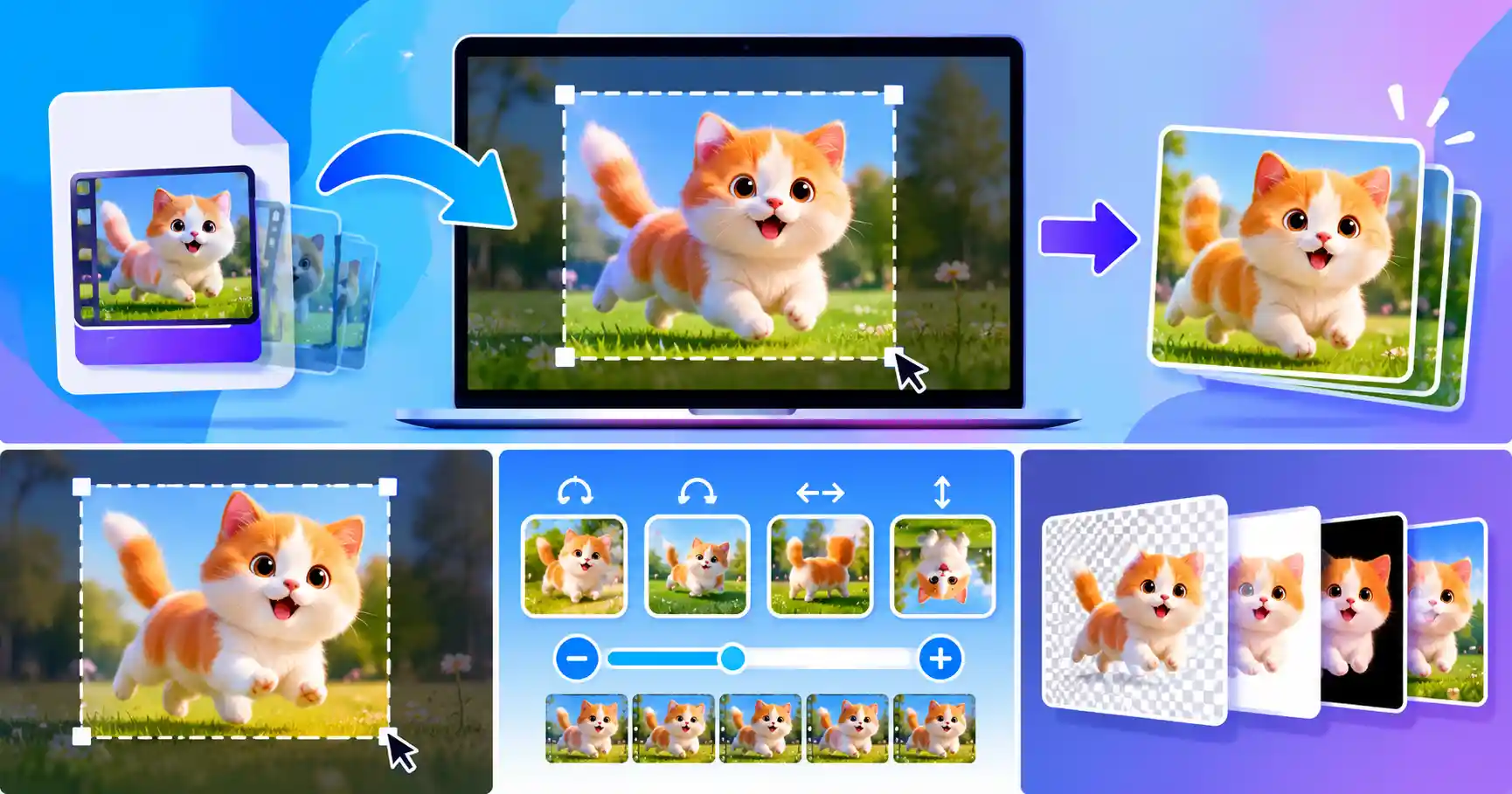
How to Crop a GIF Online
Using a GIF Cropper does not have to be complicated. The basic process is straightforward, even if you have never used an image editing application before.
- Upload your GIF. Select the GIF file from your computer, phone, or tablet.
- Select the crop area. Drag the crop box and place it over the part of the image you want to keep.
- Adjust the crop. Use the corner handles to make the selection larger or smaller.
- Choose a ratio or size. You can use a preset ratio or enter a custom width and height.
- Make additional adjustments. Zoom, rotate, or flip the image if necessary.
- Choose the output. Select GIF, PNG, JPG, or WebP depending on how you plan to use the result.
- Download the result. Click the crop button and download the finished image.
Why Use a GIF Cropper?
There are many small situations where cropping an image makes more sense than resizing it. If the important part of a GIF is surrounded by unnecessary space, simply making the entire image smaller will not solve the problem. Cropping lets you remove that extra area first.
Cropping can also make an image fit better into a specific layout. For example, a website banner may need a wide shape, while a social media design may work better with a square or vertical composition.
A simple online crop tool can save time because you do not need to install a full photo editor just to remove part of an image.
GIF Cropper Features
Free Crop
Select the area manually when you do not need a fixed aspect ratio.
Popular Aspect Ratios
Choose 1:1, 4:3, 3:4, 16:9, or 9:16 for common image layouts.
Custom Width and Height
Enter the dimensions you need when a project requires a specific pixel size.
Social Media Sizes
Use preset dimensions for common social media content and other online graphics.
Zoom Control
Zoom in when you need more control over a small or detailed area.
Rotate and Flip
Rotate the image left or right or flip it horizontally and vertically.
Multiple Output Formats
Download the result as GIF, PNG, JPG, or WebP.
Mobile Friendly
The crop controls are designed to work on phones, tablets, and desktop screens.
GIF Cropper vs. Image Cropper
A regular image cropper and a GIF Cropper have a similar basic purpose: selecting and keeping a specific area of an image. The main difference is the type of file you are working with.
If you are working with a normal JPG, PNG, or WebP image, a standard Image Cropper may be all you need. It is useful for photos, screenshots, graphics, and other still images.
If your file is a GIF, a GIF-focused crop tool can make the workflow more convenient because the upload and output options are designed around GIF files.
Choose the Right Output Format
The best output format depends on what you plan to do with the cropped image. GIF, PNG, JPG, and WebP each have different strengths.
Useful when you specifically need a GIF file. The GIF output from this tool is a static, single-frame GIF.
A good option when you want lossless image output or transparency.
Often suitable for regular photographs and images where transparency is not required.
A useful modern format for many websites and digital projects.
Tips for Better GIF Cropping
- Keep the main subject inside the crop area.
- Avoid cutting important parts of a person, object, or graphic.
- Use a fixed aspect ratio when you need a specific shape.
- Use custom width and height when exact pixel dimensions matter.
- Zoom in when the crop needs to be more precise.
- Choose PNG when transparency or lossless output is more important.
- Choose JPG when you want a familiar format for regular photos.
- Use WebP when you want a modern web-friendly image format.
GIF Cropper FAQs
What is a GIF Cropper?
A GIF Cropper is an online tool that lets you select and keep a specific part of a GIF image while removing unwanted areas around it.
Can I crop a GIF online for free?
Yes. You can use the GIF Cropper directly in your browser without installing a traditional image editing program.
Can I choose a custom crop size?
Yes. You can enter a custom width and height in pixels when you need a particular output size.
Which aspect ratios are available?
The tool includes Free Crop, 1:1, 4:3, 3:4, 16:9, and 9:16 options.
Can I zoom before cropping?
Yes. You can use the zoom control to make it easier to select a specific part of the image.
Can I rotate or flip the image?
Yes. You can rotate the image left or right and flip it horizontally or vertically before creating the final image.
Which formats can I download?
The tool provides GIF, PNG, JPG, and WebP output options.
Is the GIF output animated?
No. The GIF output from this version is a static, single-frame GIF. It is intended for simple GIF cropping rather than preserving GIF animation.
Can I use the GIF Cropper on mobile?
Yes. The interface is responsive and the crop area can be adjusted using touch controls on supported mobile browsers.
Do I need advanced photo editing skills?
No. The tool is designed for simple cropping, so you can upload an image, select the area you want, adjust the settings, and download the result.
Crop Your GIF Online
When you only need a particular part of a GIF, cropping is often much easier than opening a full photo editing application. With this GIF Cropper, you can select the area you want, adjust the size or aspect ratio, make small image adjustments, and download the result in the format that works best for your project.
Whether you are preparing an image for a website, social media, a blog post, or a personal project, the goal is simple: keep the part you need and remove the rest.