GIF Maker
Create animated GIFs from images online for free.
Drop your images here
Maximum file size: 20MB per image
Images are processed locally in your browser. Large files may require more memory.
GIF Maker – Create Animated GIFs Online Free
A GIF is a simple way to show movement without asking someone to play a video. With our GIF Maker, you can combine multiple pictures into one animated GIF, adjust the frame speed, choose an output width, preview the animation, and download the finished file. The tool is designed for quick everyday tasks, whether you are creating a photo sequence, a tutorial, or a short visual for your website.
What Is a GIF Maker?
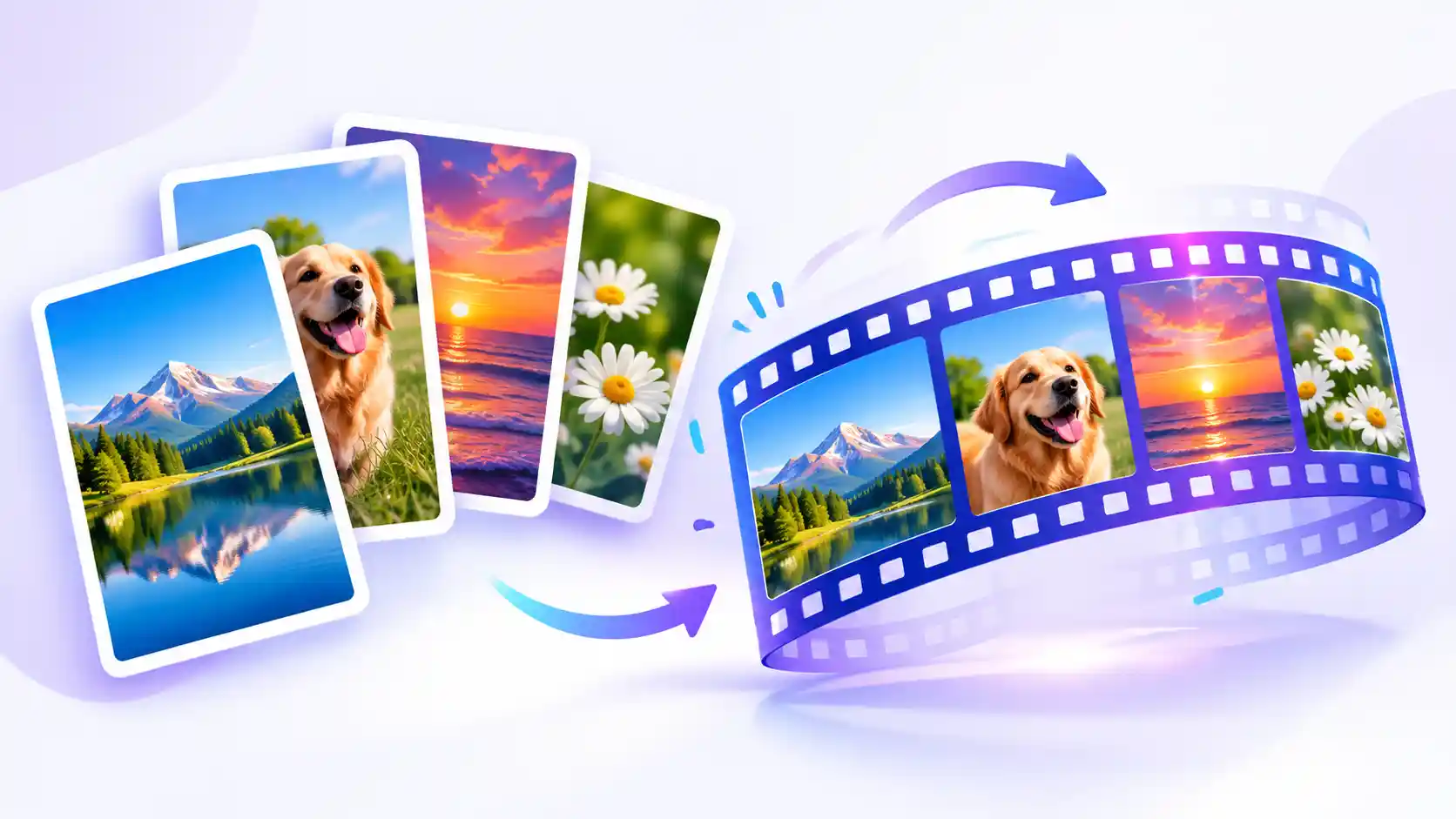
A GIF Maker is an online tool that combines a sequence of images into a single animated file. Each picture becomes a frame, and the frames appear one after another to create the impression of motion. You can use this method to make a photo slideshow, demonstrate a small process, or show different stages of a project.
Our free GIF Maker lets you choose images from your device and arrange them in the order you want. You can change how long each frame stays visible, select a suitable output width, and choose a quality setting before creating the GIF. The result can be downloaded and used in supported websites, messages, presentations, and other digital projects.
You do not need a professional animation program for a basic image-to-GIF project. If you already have the pictures you want to use, the process is straightforward: upload your images, adjust the settings, create the animation, and save the result.
Why Use Our GIF Maker?
Making a short animation should not require complicated editing software. This GIF Maker focuses on the controls most people need when turning ordinary images into an animated file.
- Multiple image support: Select several pictures and combine them into one animation.
- Adjustable animation speed: Change the delay between frames to make the GIF play faster or slower.
- Different output widths: Choose 320, 480, 640, or 800 pixels to suit your project.
- Quality options: Select a higher-quality, balanced, or smaller-file setting.
- Frame ordering: Move images up or down and remove pictures you do not need.
- Live preview: Check how your pictures look as an animation before creating the final file.
- Looping control: Choose whether the animation should repeat continuously.
- Browser-based processing: The image conversion is performed locally in your browser rather than sending the selected images to a conversion server.
- No paid API required: The tool uses its JavaScript encoder instead of a paid GIF-generation API.
How to Use the GIF Maker
You can create an animated GIF in a few simple steps. Prepare the pictures you want to combine, then follow the instructions below.
- Upload your images. Click the upload area or drag your supported image files into it. Select at least two images to create an animation.
- Arrange the frames. Check the image list and move pictures up or down until they appear in the correct order.
- Set the animation speed. Adjust the frame delay in milliseconds. A shorter delay makes the animation move faster, while a longer delay keeps each image visible for more time.
- Choose the GIF width. Select a smaller width for a lightweight file or a larger width when you need more image detail.
- Select the quality and loop options. Choose a quality setting and decide whether the animation should repeat continuously.
- Preview and create your GIF. Review the sequence, click Create Animated GIF, and wait for the encoding process to finish.
- Download the finished file. When the result is ready, use the download button to save your animated GIF to your device.
Choose the Right GIF Size and Speed
The best settings depend on the images you are using and where you plan to share the animation. A small GIF can be useful for a quick preview or a simple demonstration, while a larger output may retain more detail. Keep in mind that larger dimensions and more frames can increase the final file size and the time needed to create it.
320 Pixels: Small and Lightweight
A width of 320 pixels is a useful starting point for simple animations, small previews, and basic visual demonstrations. Try this setting when file size matters more than fine detail.
480 Pixels: A Balanced Option
The 480-pixel setting is a practical choice for many everyday GIFs. It can work well for a short photo sequence or an animation that needs to remain reasonably compact.
640 or 800 Pixels: More Detail
Larger widths may help preserve detail in screenshots and product pictures. However, they can also require more memory during encoding and produce a larger GIF. If your browser struggles, try reducing the output width or using fewer images.
Adjust the Frame Delay
Frame delay controls how long each picture appears before the next one is displayed. For a quick sequence, use a shorter delay. For instructions, product steps, or a before-and-after comparison, a longer delay may make the changes easier to follow.
What Can You Create with a GIF Maker?
Photo Slideshow GIFs
Combine several photos from a trip, an event, or a product collection into a single looping animation. Put the pictures in a logical order so the final sequence tells a clear visual story.
Before-and-After Comparisons
Use two or more images to show a change in a room, a design, a product, or a creative project. Choose a slower frame delay when viewers need time to compare the different stages.
Tutorials and Screenshots
A sequence of screenshots can show how a small task works. For example, you might demonstrate a series of interface changes or show the steps in a simple workflow. Keep the source images readable and avoid using more frames than the explanation needs.
Website and Social Content
Animated GIFs can be useful for lightweight demonstrations, simple visual updates, and short looping content. Before publishing, check the dimensions and file size and make sure the animation communicates its message clearly.
Tips for Creating a Better Animated GIF
- Use images with similar dimensions. Consistent image proportions can make the animation look more uniform and reduce unwanted empty space.
- Arrange the frames carefully. A logical sequence makes the animation easier to understand.
- Start with fewer images. Remove duplicate or unnecessary frames before creating the GIF.
- Reduce the width if the file is too large. Smaller dimensions often reduce the amount of data that must be encoded.
- Choose a comfortable speed. An animation that moves too quickly can be difficult to follow.
- Check the preview before downloading. Make sure the frame order and timing look right.
Is the GIF Maker Private?
This GIF Maker is designed to process selected images inside your browser. It uses browser image handling and a JavaScript GIF encoder to prepare the output. The selected pictures are not intentionally uploaded to a conversion server as part of the GIF creation process.
The encoder and Worker JavaScript files must still load for the tool to work. Like any website, the page may make requests to load its own resources. You can use your browser's developer tools and Network panel to inspect requests while testing the tool.
Image files are processed using your device's memory and processing power. Very large images or long sequences may take more time or exceed the memory available in your browser. If this happens, try fewer images or a smaller output width.
Related Image Tools
If you need to prepare your pictures before making an animation, try these related tools from ImageToResizer. They can help you resize or compress images before adding them to your project.
Frequently Asked Questions About GIF Maker
1. What is a GIF Maker used for?
A GIF Maker combines multiple images into a single animated GIF. It is useful for photo slideshows, tutorials, short demonstrations, and simple looping animations.
2. Is this GIF Maker free to use?
Yes. You can use this browser-based GIF Maker without a paid GIF-generation API. Your browser performs the encoding using the tool's JavaScript library.
3. Do I need to install software?
No additional desktop software is needed. Open the tool in a supported browser, choose your images, adjust the settings, and create your GIF.
4. Can I control the speed of my GIF?
Yes. Adjust the frame delay in milliseconds. A lower delay makes the pictures change more quickly, while a higher delay makes the animation slower.
5. Why is my GIF file so large?
The number of frames, image dimensions, and image details all affect the output size. Try using fewer images, choosing a smaller width, or selecting the smaller-file quality option.
6. Can I use PNG and JPG images?
Yes. The tool accepts JPG, PNG, WebP, and GIF image files. Each selected image becomes a frame in your animation.
7. Are my images stored on your server?
The GIF creation process is designed to run locally in your browser. The selected images are not intentionally sent to a server for conversion. You can verify network activity in your browser during testing.
8. Why does GIF creation sometimes fail?
Large images, limited browser memory, or a problem loading the encoder or Worker file can interrupt GIF creation. Check that both JavaScript files load correctly, then try smaller images and a lower output width.
Create Your Animated GIF Today
Turning pictures into an animation does not have to be complicated. With this GIF Maker, you can arrange your images, adjust the timing and output width, preview the result, and download the finished file. Start with a few images, choose settings that fit your project, and create an animated GIF directly in your browser.