Rotate GIF
Rotate animated GIF images online for free.
Drop your GIF image here
or click to choose a GIF file
Maximum file size: 20MB
Rotate GIF
Rotation: 0°
Preview
Need to fix an animated image that appears sideways or upside down? Rotate GIF makes it easier to change the orientation of an animated GIF without manually editing every frame. Choose your file, select a rotation angle, preview the result, and export a new GIF when you are ready.
Whether you are preparing a funny animation for social media, correcting a clip shared by a friend, or adjusting a GIF for a website, this tool gives you a straightforward way to rotate animated images in your browser. You do not need a desktop editing program for a simple rotation.
What Is Rotate GIF?
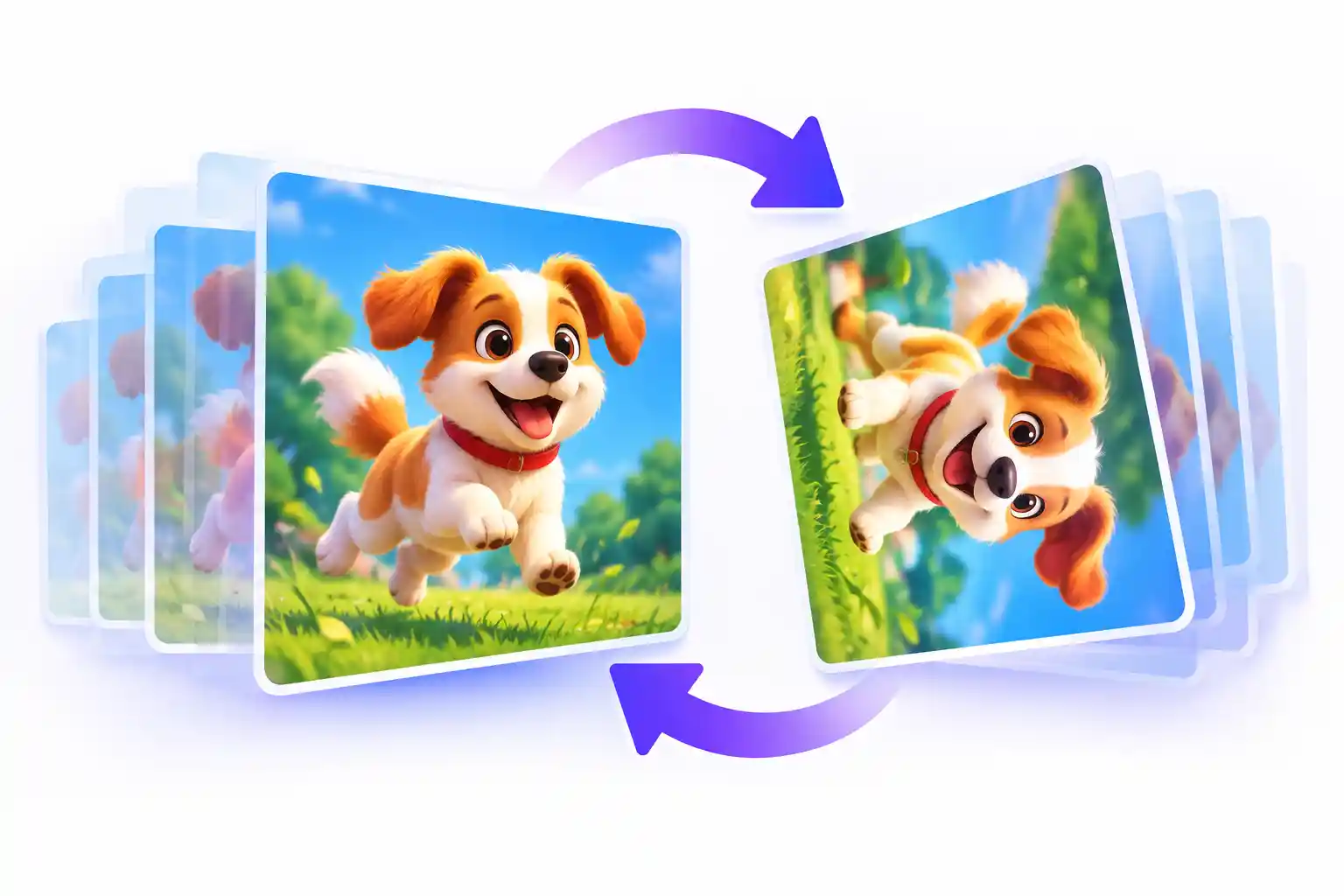
GIF Rotate is an online utility that changes the orientation of an animated GIF. A rotation turns the image around its center, allowing you to correct a sideways animation or create a different visual direction. Depending on the tool controls, you can rotate an image by 90 degrees, 180 degrees, or 270 degrees.
A GIF can contain many individual frames that play one after another. That is what creates the animation. When rotating an animated file, the frames need to be processed consistently so that the movement continues in the correct order. Rotating only a still preview is not enough to create a properly rotated animated GIF.
This tool accepts GIF files up to 20MB. Processing takes place in your browser, although the decoder library may load from an external CDN. The actual image file is not intended to be uploaded to our server. Large animations can take longer to process.
How to Rotate GIF Online
You can rotate your animated image in a few simple steps. Keep your original file available until you have checked the exported result.
-
Upload your GIF file.
Click the upload area or drag a GIF from your device into the drop zone. Choose a file smaller than 20MB. -
Choose a rotation angle.
Select Rotate Left, Rotate Right, or 180 degrees. Use Reset if you want to return to the original orientation. -
Check the preview.
Look at the image to confirm that the direction is correct. Check that the animation plays as expected before exporting. -
Export and download the GIF.
Click Rotate & Download GIF and wait for the browser to finish processing. Save the resulting file to your device.
GIF Rotation Angles Explained
Choosing the right angle depends on how your original animation is positioned. The following guide can help you select the appropriate setting.
| Rotation | What It Does | When to Use It |
|---|---|---|
| 90 degrees | Turns the image a quarter turn. | When the animation appears sideways. |
| 180 degrees | Turns the image halfway around. | When the animation is upside down. |
| 270 degrees | Turns the image three-quarters of a full turn. | When the opposite quarter turn is needed. |
| Reset | Returns the preview to its original orientation. | When you want to start the adjustment again. |
Why Use Our GIF Rotate Tool?
Editing an animated GIF can feel complicated when you only need to change its direction. A browser-based rotation tool provides a simpler workflow for everyday image tasks.
- Simple controls: Rotate an image using clear, easy-to-understand buttons.
- Animated GIF support: The export process works with animation frames rather than only rotating a still preview.
- Browser-based workflow: You can use the tool on a compatible desktop or mobile browser.
- No account required: You can use the tool without creating an account.
- File size information: Compare the original and exported file sizes when the output has finished processing.
- Convenient download: Save the rotated result directly to your device.
When Should You Rotate an Animated GIF?
There are several reasons to change the orientation of an animation. A GIF downloaded from a website may be positioned incorrectly for your project. An animation created from a video may also need a different orientation before you share it.
You might rotate a GIF before adding it to a blog post, using it in a presentation, sending it in a message, or placing it in a creative project. Correct orientation can make the subject easier to understand and help the animation fit the surrounding content.
Rotation does not automatically make a GIF smaller or improve its visual quality. If your main goal is to reduce the file size, use a dedicated GIF compression tool after rotating the image.
Related GIF and Image Tools
Need to do more than rotate an animation? Explore these related tools to prepare GIF files and other images for your next project.
Tips for Better GIF Rotation Results
- Start with a working file. Make sure the original GIF opens and plays correctly before editing.
- Use a suitable file size. Smaller GIFs generally require less memory and may export faster.
- Check the entire animation. A still preview cannot confirm that every frame has been exported correctly.
- Keep a backup. Save the original in case you want to try a different angle later.
- Check the output file. Open the downloaded GIF and verify its orientation, animation, transparency, and playback before sharing it.
Frequently Asked Questions
1. Can I rotate a GIF online for free?
Yes. You can use the GIF Rotate tool on ImageToResizer to select an animated GIF, choose a rotation angle, and export the result without paying for an API.
2. Will the GIF remain animated after rotation?
The tool processes animation frames to create a new GIF. Check the downloaded file before using it, because complex transparency or frame-disposal settings can affect some animations.
3. Can I rotate a GIF by 90 degrees?
Yes. Use the Rotate Left or Rotate Right control to turn the GIF by a quarter turn. The exact direction depends on which control you select.
4. What is the maximum GIF file size?
This tool accepts GIF files up to 20MB. If your file is larger, try reducing its size with a suitable GIF compression tool first.
5. Do I need to install software?
No desktop software is required. Use a compatible web browser to open the tool, select your file, and download the result.
6. Is my GIF uploaded to a server?
The tool is designed to process the selected image locally in your browser rather than upload the GIF itself to our server. The decoder library may be loaded from an external CDN.
7. Will rotating a GIF reduce its file size?
Not necessarily. Rotation changes the orientation, but the output file can be smaller or larger depending on its frames and encoding. Use a GIF compressor if reducing file size is your main goal.