Need to change the direction of a GIF image? Our flip GIF guide explains how to flip an image horizontally or vertically, check the result, and save an edited image. The process is simple, even if you have never edited a GIF before.
What Is a Flip GIF Tool?
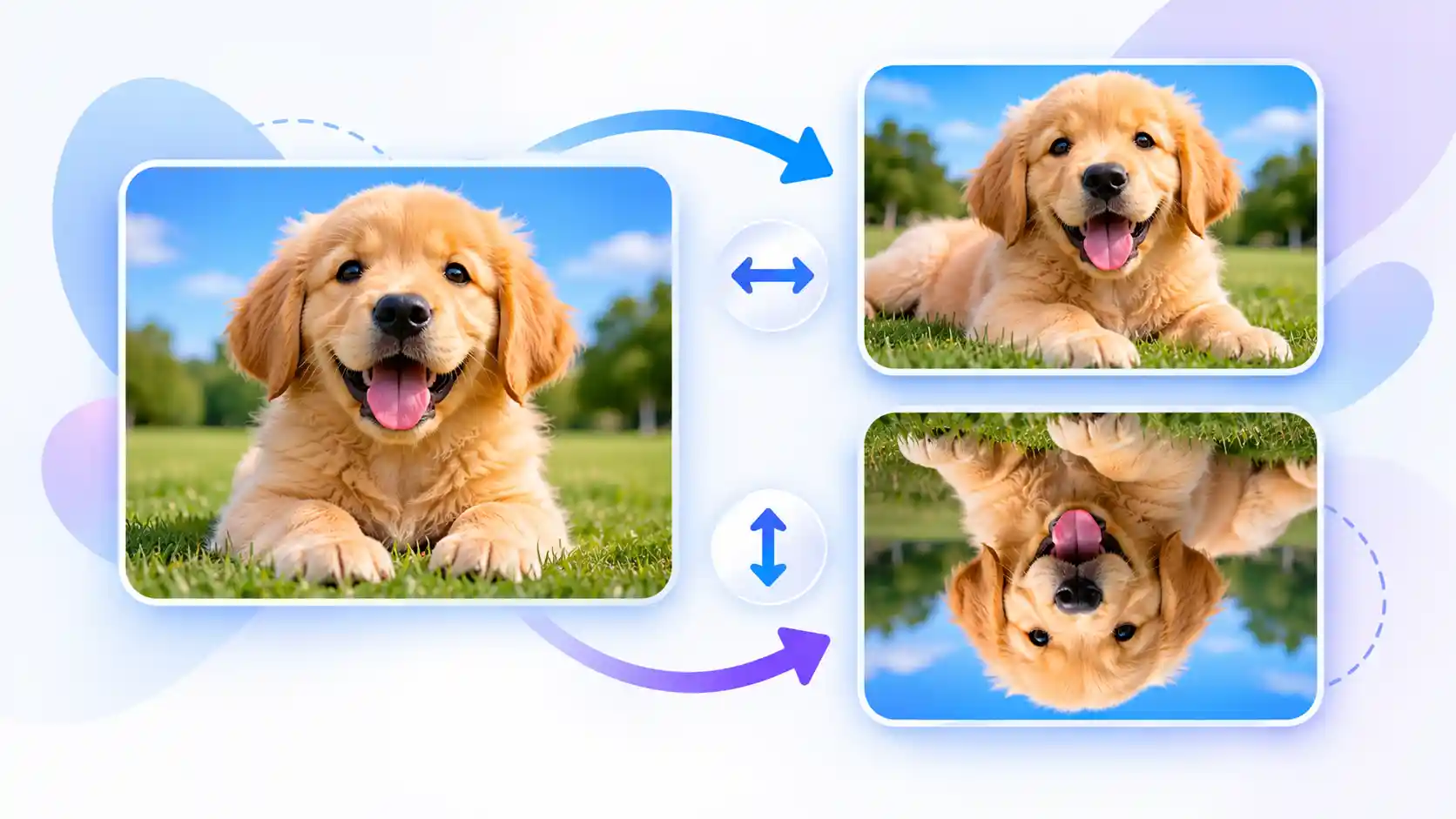
A GIF flipper is an image-editing tool that changes the direction of a GIF image. You can create a mirror-like result by flipping the image from left to right. You can also flip it from top to bottom when you need an upside-down version.
This can be useful when a graphic faces the wrong direction, a visual needs to match a layout, or you want to create a different version of an existing image. Instead of opening complicated editing software, you can use a straightforward online workflow.
How to Flip GIF Images Online
You can follow these basic steps to flip a GIF image. The exact buttons may differ depending on the editor you use.
- Choose your GIF: Open a GIF-flipping tool and select the image you want to edit.
- Select a flip direction: Choose horizontal flipping for a mirror effect or vertical flipping to turn the image upside down.
- Preview the result: Check the edited image carefully to make sure the direction looks right.
- Choose the output format: Use GIF if you need animation and the tool supports it. PNG or JPG may be suitable for a static image.
- Download your image: Save the result and open it once to confirm that it looks the way you expected.
Horizontal vs. Vertical GIF Flipping
Flip a GIF Horizontally
Horizontal flipping reverses the image from left to right. It creates a mirror effect, so objects that appeared on one side will appear on the other. This can help when you need to change the facing direction of a character, icon, or visual element.
Flip a GIF Vertically
Vertical flipping reverses the image from top to bottom. The result appears upside down. This option can help with certain visual effects or layouts, although it may not look natural for every image.
Why Use a Flip GIF Tool?
- Quick editing: Change the direction of an image without learning a complicated editor.
- Easy preview: Review the result before saving it.
- Flexible workflow: Prepare visuals for websites, presentations, and creative projects.
- Simple controls: Horizontal and vertical options make the editing process easier to understand.
- Format awareness: Choose a suitable output format according to whether you need a static image or animation.
Does Flipping a GIF Affect Its Quality?
A simple horizontal or vertical flip does not normally require you to resize the image. However, the quality of the downloaded file depends on the editor and export settings. Converting a GIF into another format may also change its appearance, transparency, file size, or animation behavior.
If you want to keep an animated GIF, check the exported file before using it. Make sure it still plays, its frame sequence is intact, and its transparency looks correct. If you only need a still image, PNG may be a useful option when you want to retain transparent areas.
Can You Flip an Animated GIF?
Yes, but the editor must support animated GIF processing to preserve the animation. An animated GIF contains multiple frames. To flip the entire animation, the editor needs to transform each frame and rebuild the output file with the correct timing.
Some simple browser editors work with only a single displayed frame. In that case, the downloaded result may be a static image. Always check the tool's features before uploading an animated GIF if keeping the movement is important.
Related Image Tools
After you flip your image, you may need to resize, compress, or convert it for another project. Explore these related tools on ImageToResizer.
Image Resizer
Adjust image dimensions for websites, profiles, and other digital projects.
Try Image Resizer →Image Compressor
Reduce image file size when you need a lighter image for sharing or web use.
Explore Image Tools →Image Converter
Find a suitable image format for your next design or publishing task.
Browse Image Tools →Frequently Asked Questions About Flip GIF
1. What does flip GIF mean?
Flip GIF means reversing a GIF image horizontally or vertically. Horizontal flipping creates a mirror effect, while vertical flipping turns the image upside down.
2. Can I flip a GIF online for free?
Yes, you can use an online GIF editor that offers flipping controls. Check the tool's usage limits and supported formats before starting.
3. Will flipping a GIF remove its animation?
Not necessarily. A tool that processes every frame can preserve animation. A tool that exports only one frame may create a static result, so check the output before downloading.
4. What is the difference between horizontal and vertical flipping?
Horizontal flipping reverses an image from left to right. Vertical flipping reverses it from top to bottom.
5. Can I flip a GIF without changing its dimensions?
Yes. Flipping usually changes the direction of the image without changing its width or height. The final dimensions depend on the editor's export settings.
6. Which format should I choose after flipping?
Choose GIF when you need animation and your editor preserves it. Choose PNG or JPG when you need a static image, keeping in mind that JPG does not preserve transparency.